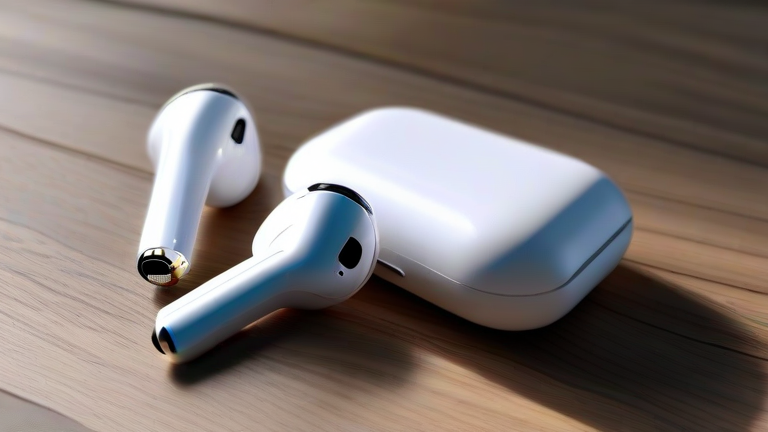
TL;DR: To fix Apple AirPods Pro 2 noise cancellation issues, first ensure your ear tips are the correct size and fit securely, then reset the audio settings via the Settings app. If the problem persists, manually re-run the Ear Tip Fit Test and update your iOS software to the latest version to resolve potential firmware bugs.
Understanding the Technology
The Apple AirPods Pro 2 represent a significant leap forward in consumer audio technology, primarily due to their advanced Active Noise Cancellation (ANC) system. Unlike their predecessors, the second generation utilizes a custom-built H2 chip, which processes audio signals much faster and more efficiently. This chip works in tandem with two beamforming microphones and an inward-facing microphone to actively monitor and cancel out ambient noise. The result is up to twice the noise cancellation performance compared to the original AirPods Pro. This technological advancement has not only improved user experience but has also raised the industry standard for true wireless stereo earbuds, forcing competitors to innovate rapidly to keep pace.
Common Issues and Solutions
Despite their sophisticated engineering, many users report issues with noise cancellation, ranging from weak performance to complete failure. The most frequent culprit is an improper fit. The ear tips are critical for creating the seal necessary for effective ANC. If the tips are too small or worn out, outside noise will leak in, rendering the cancellation ineffective. Users should visit the Settings app on their iPhone, navigate to Bluetooth, tap the “i” icon next to their AirPods, and select “Ear Tip Fit Test.” This feature uses a series of tones to determine if the seal is optimal. If the test fails, try the next size up or down until you achieve a “Fit OK” status.
Another common issue stems from software glitches. Apple frequently releases iOS updates that contain critical bug fixes for audio processing. Ensuring your iPhone is running the latest version of iOS can resolve temporary software conflicts affecting the H2 chip. Additionally, resetting the AirPods Pro 2 can clear any corrupted configuration data. To do this, place both earbuds in the charging case, close the lid for thirty seconds, then open it. Press and hold the setup button on the back of the case until the status light flashes amber, then white. Re-pair the device with your iPhone.
Industry Impact and Latest Developments
The introduction of the AirPods Pro 2 has had a profound impact on the broader audio industry. By integrating the H2 chip, Apple has demonstrated the importance of custom silicon in enhancing user experience beyond mere hardware specifications. This move has pressured other major tech companies to invest heavily in proprietary audio processors. Furthermore, the emphasis on transparency mode and personalized spatial audio has shifted consumer expectations, making these features standard requirements rather than nice-to-have additions. Recent firmware updates have also improved the responsiveness of Adaptive Transparency, allowing users to hear important sounds like sirens or voices while still enjoying some noise isolation.
FAQ
Q: Why is my noise cancellation working poorly after an update?
A: Check your ear tip fit first, as updates can sometimes reset sensitivity settings. Ensure your iOS is fully updated, as bugs may affect the H2 chip’s performance temporarily.
If you want to dig deeper, check out our guide on 10 Simple Health Habits to Boost Energy & Vitality Today.
Q: Can I fix the issue without resetting the AirPods?
A: Yes, try cleaning the microphone meshes gently with a dry, soft brush and re-running the Ear Tip Fit Test. Cleaning debris can often restore optimal functionality without a full reset.
Q: Does the H2 chip make a noticeable difference in noise cancellation?
A: Absolutely. The H2 chip allows for twice the noise cancellation of the first generation and enables features like Adaptive Audio, which dynamically adjusts noise control based on your environment.
Leave a Reply