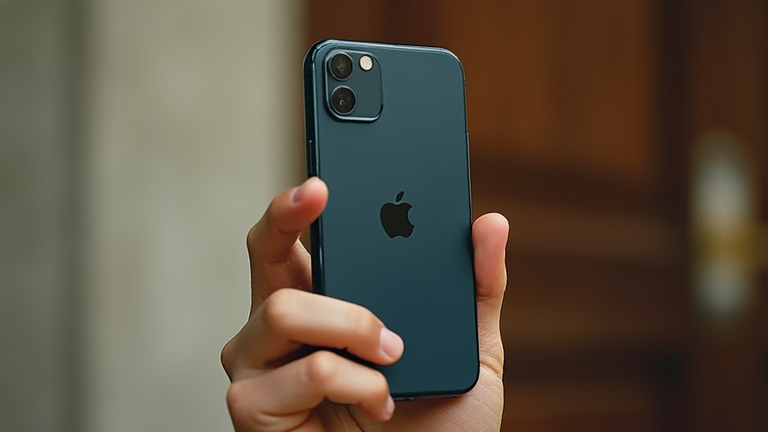
TL;DR: Master the iPhone 15 Pro Max camera by utilizing the new Action Button for quick access, leveraging the improved 5x optical zoom, and switching between modes like Photographic Styles for immediate creative control. Explore the ProRAW format for advanced editing while relying on Smart HDR 5 for balanced, vivid everyday shots.
Getting Started with the Interface
The iPhone 15 Pro Max features a refined camera interface designed for intuitive operation. When you open the Camera app, you will notice a clean layout with a shutter button at the bottom right and mode selectors at the top. Familiarize yourself with the primary modes: Photo, Video, Portrait, and Night mode. The default Photo mode is sufficient for most daily snapshots, offering automatic adjustments for lighting and color. For professional-grade results, swipe left to access ProRAW, which captures uncompressed data for maximum post-processing flexibility. Understanding these basic navigational tools is the first step toward unlocking the device’s full potential.
If you want to dig deeper, check out our guide on 10 Proven Strategies to Grow Your Business in 2024.
Mastering Zoom and Focus
One of the standout features of the iPhone 15 Pro Max is its advanced optical zoom system. The device includes a dedicated 5x Telephoto lens, allowing you to capture distant subjects with exceptional clarity without digital degradation. To use this, simply pinch two fingers together on the screen to zoom in, or tap the 5x button located on the right side of the mode bar. For close-up shots, the Ultra Wide lens offers a 0.5x focal length, perfect for landscapes or tight interiors. Always tap on your subject to set the focus point. A yellow box will appear, and sliding the sun icon next to it allows you to manually adjust exposure, ensuring your subject is perfectly lit even in challenging conditions.
Utilizing Photographic Styles and Night Mode
Apple’s Photographic Styles provide an excellent way to customize the look of your images directly in-camera. Accessed via the three overlapping circles icon, these styles include Vibrant, Warm, Cool, Rich Contrast, and Mono. Unlike filters applied after the fact, Photographic Styles analyze the scene and apply adjustments intelligently, preserving natural skin tones and shadows. This feature is particularly useful for maintaining consistency across a series of photos. Additionally, enable Night mode for low-light environments. The phone automatically detects dim lighting and suggests longer exposure times. You can also manually trigger it by tapping the moon icon and adjusting the duration to capture more detail in dark scenes without introducing excessive noise.
Pro Tips for Better Composition
Technical settings alone do not guarantee great photos; composition plays a crucial role. Enable the Grid in Settings to follow the rule of thirds, placing key elements along the intersecting lines for a balanced frame. Use the Action Button, customizable via Settings, to launch the Camera app instantly, ensuring you never miss a spontaneous moment. For portraits, rely on the Portrait mode’s depth control to blur backgrounds effectively, drawing attention to your subject. Finally, clean your lenses regularly. Smudges can significantly reduce image quality, causing flares and softness. By combining these technical settings with mindful composition, you will consistently produce stunning images that highlight the exceptional capabilities of the iPhone 15 Pro Max camera system.
FAQ
Q: How do I switch between the different lenses on the iPhone 15 Pro Max?
A: You can switch lenses by tapping the numbers at the top of the screen, such as 0.5, 1, 3, and 5, or by using pinch-to-zoom gestures on the viewfinder.
Q: What is the difference between Photographic Styles and filters?
A> Photographic Styles adjust the image data in real-time based on scene analysis, whereas filters are static overlays applied after the photo is taken, often affecting skin tones less naturally.
Q: Can I customize the Action Button to open the camera?
A: Yes, go to Settings, select Action Button, and choose Camera to assign this function, allowing for instant access to your camera from any screen.
Leave a Reply